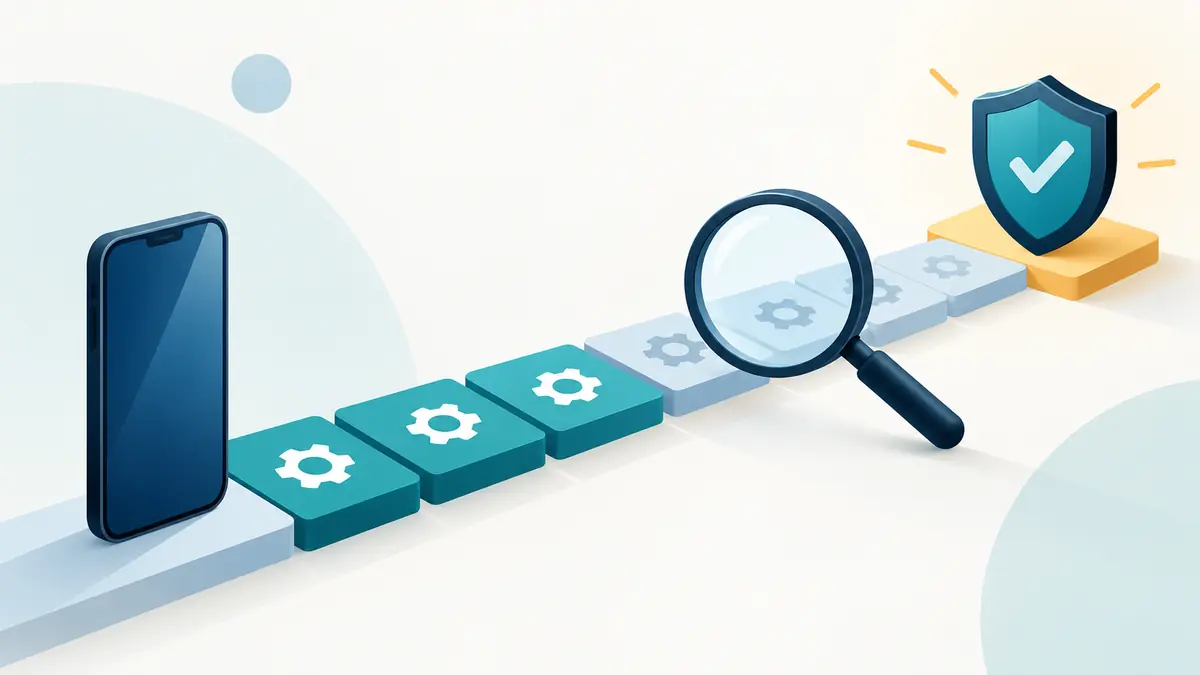
iOS 27.2 Update Checklist: Back Up, Install and Verify
Before installing iOS 27.2, complete a backup and check that you can recover the accounts and files you depend on. Then use the update offered through Apple’s own Software Update screen. A short preparation routine is particularly useful when your iPhone is your main route to work messages, banking or two-factor authentication.
Apple dates the iOS 27.2 and iPadOS 27.2 security release October 26, 2026. Its security document describes fixes across multiple components. This article is an update preparation guide; it does not claim that the release improves every phone’s battery life or resolves every application problem.
Confirm what your own device is being offered
Open Settings, then General, then Software Update. Read the installed version and the available update. Use the on-device offer and Apple’s compatibility information for your exact model. A release number mentioned in an article does not mean that every older iPhone receives that release or the same features.
Keep a simple record of the model, installed version and check date. If a different update is offered, read its official notes rather than trying to force a particular release through an unofficial download. For a managed work device, follow your organization’s deployment instructions.
Make the backup a completed step
Apple supports backing up to iCloud, a computer, or both. Its backup documentation also distinguishes a backup from data already synchronized to cloud services. An encrypted local backup includes certain categories of data that an unencrypted computer backup does not. Use Apple’s instructions for the method you choose and retain any encryption password securely.
For a manual iCloud backup, Apple directs users to Settings, their name, iCloud and iCloud Backup, then Back Up Now. Stay connected until it completes and check the displayed last-backup time. Seeing the backup switch turned on is weaker evidence than seeing a recent successful completion.
| Preparation | Evidence to keep | If it is missing |
|---|---|---|
| A completed backup | Recent successful completion time | Finish the backup before beginning installation |
| Important synchronized files | Files visible in the intended account | Check sync status and export critical app-only files |
| Account recovery | A working trusted recovery route | Resolve access while your phone still works normally |
| Space, power and connection | No unresolved storage warning; reliable Wi-Fi and power | Address the stated problem using official guidance |
Choose an installation window you can afford
Start when you are not about to board transport, receive an important call or present a ticket stored only on the phone. Allow time for the download, installation and checks afterwards. No single installation duration applies to every connection and device.
Apple’s wireless-update instructions say to back up first, connect to power and Wi-Fi, and use Settings > General > Software Update. Follow the prompts shown on your device. If storage or an error prevents the update, read the linked Apple troubleshooting guidance rather than repeatedly restarting the process.
Do not delete the only copy of photos or documents just to make room. First verify where another complete copy exists. If a backup upload is the long part of your plan, estimate the transfer time using the backup and transfer planner, then allow additional time to verify completion.
Run a five-minute essentials check afterwards
- Confirm the installed version in Settings and review any remaining update prompts.
- Make a normal call and check Wi-Fi and mobile data where available.
- Open the applications needed for work, travel and account authentication.
- Find several important photos, notes and documents; confirm that the intended cloud account is connected.
- Check that your chosen backup process remains enabled and can complete again.
If an app fails, record its name, version, the exact action and the message shown. Check the app developer’s support information. A specific report gives you a much better path to a fix than treating every post-update symptom as the same problem.
Evaluate battery complaints with comparable use
Keep a small log of screen time, signal conditions, demanding apps and charging for several normal days. Compare similar days before drawing conclusions. A long navigation session on mobile data and a quiet day on home Wi-Fi are poor evidence for a direct before-and-after claim. For persistent trouble, use Apple’s support route and the device’s battery information.
Record the update date in the free software support planner. When an older device stops receiving suitable security updates, use our support-runway guide to plan the next step.
Official references
- iOS 27.2 and iPadOS 27.2 security content
- Update your iPhone or iPad
- Backup methods and what they include
- Back up with iCloud
References checked October 28, 2026. Available releases and menus may vary by device and installed software.
Topic research: “ios” appeared in Google Trends Trending Now, Pakistan, Technology, past seven days, checked October 28, 2026. A trend is a snapshot of rising interest, not a monthly search-volume estimate.