OLED Burn-In vs Temporary Image Retention: What Used-Device Buyers Should Check
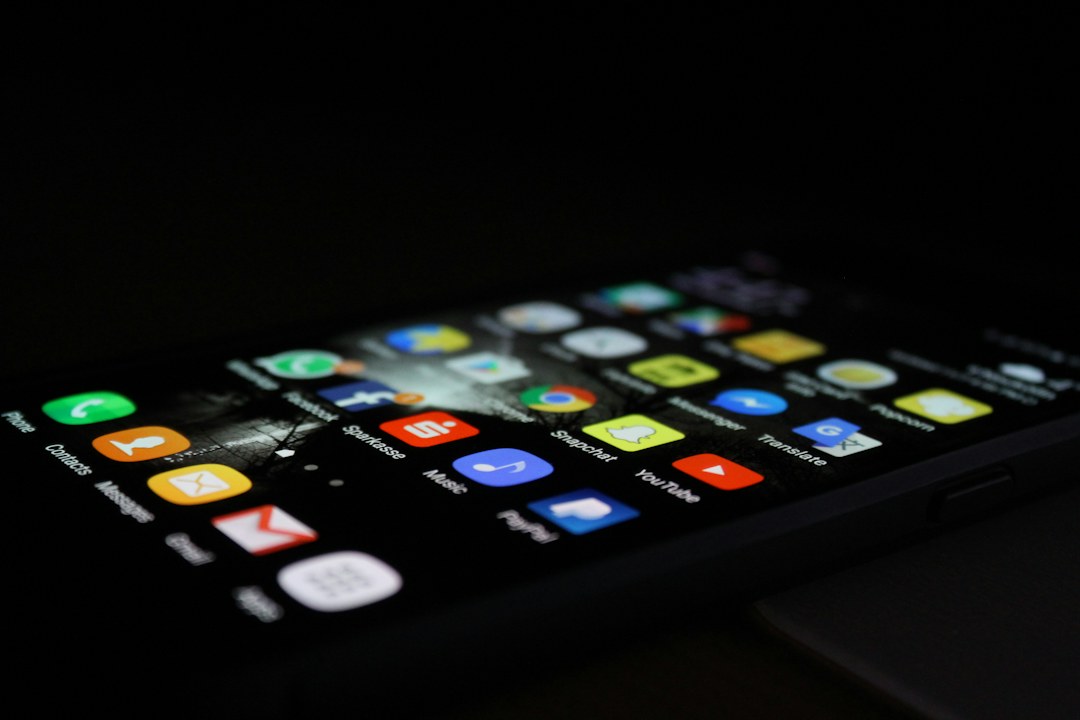
A faint keyboard outline, status bar, game HUD, or navigation icon on an OLED display can mean very different things. Sometimes it is temporary image retention that fades after the content changes. Sometimes it is permanent differential aging—what people usually call burn-in. For a used phone, laptop, tablet, handheld, or OLED monitor, telling the difference matters because one may disappear while the other becomes part of the screen’s long-term condition.
OLED panels are self-emissive: individual subpixels produce their own light instead of using a separate backlight. That gives OLED its deep blacks and high contrast, but it also means different pixels can age at different rates depending on how brightly and how long they have been driven.
Temporary image retention and burn-in are not the same thing
Temporary image retention is a visible after-image that can diminish or disappear after the screen shows changing content or rests. Permanent burn-in is differential aging: parts of the display have been used differently enough that the imbalance remains visible.
Manufacturers sometimes use terms such as image persistence, image retention, or burn-in differently in support documentation. For a buyer, the useful distinction is whether the artifact clears or remains.
Why static interface elements are the usual suspects
OLED aging is tied to how subpixels are driven over time. Repeated high-brightness use of the same fixed region can cause that region to age differently from its neighbors.
Examples include:
- navigation bars and status icons;
- news tickers and channel logos;
- game HUDs;
- desktop taskbars;
- spreadsheet ribbons;
- always-on dashboards;
- split-screen borders;
- store demo loops with fixed branding.
Brightness matters because the panel is working harder
Higher brightness generally requires more electrical drive. A static element shown for long periods at high brightness is therefore a more demanding use case than varied content at moderate brightness.
This is why showroom units can be poor reference points for normal household aging: they may run bright, static promotional content for long hours every day.
Time is not the only variable
Two devices with the same age can have very different screen condition. One may have spent three years displaying varied videos and web pages at moderate brightness. Another may have spent the same period running navigation, a game, or a fixed productivity layout every day.
Usage pattern matters more than calendar age alone.
OLED protection features reduce risk but do not make differential aging impossible
Modern OLED devices use several mitigation techniques: shifting pixels slightly, dimming static elements, adjusting brightness, refreshing compensation data, hiding fixed interface areas, or changing always-on content.
These features can reduce visible uneven aging. They do not make every usage pattern equivalent.
Why a gray screen is useful during inspection
Burn-in can be hard to notice on colorful moving content because new information hides subtle non-uniformity.
A mid-gray test screen is useful because small brightness differences become easier to see. You can also use solid colors to reveal uneven aging in individual subpixel channels.
The point is not to hunt for microscopic panel variation. It is to find artifacts you would notice during normal ownership.
Test at moderate brightness, not only maximum brightness
Maximum brightness can reveal some issues but can also exaggerate normal uniformity differences. Very low brightness can reveal others.
A practical used-device check uses several levels: around 25%, 50%, and 75%, with adaptive brightness disabled temporarily so the result is repeatable.
Check multiple colors because OLED wear can be color-dependent
An image may be subtle on white and obvious on red or gray. Since OLED subpixels age differently, testing red, green, blue, gray, and white can reveal patterns that a single image hides.
If the same ghost shape appears consistently across several backgrounds, permanent wear becomes more likely.
Give temporary retention a chance to clear
If you see a faint after-image, play varied full-screen video or rapidly changing content for several minutes, then repeat the solid-color test.
If the artifact fades significantly, it may have been temporary retention. If the same shape remains unchanged after varied use and a restart, permanent differential aging becomes more plausible.
Do not rely on a seller’s wallpaper
A dark or busy wallpaper can hide burn-in extremely well.
For a used phone, open a plain system page, browser test page, or locally created solid-color image. For a laptop or monitor, use full-screen color fields.
TechReviewz’s used-laptop inspection checklist follows the same principle: test the component directly rather than trusting how it looks in a prepared demo state.
Watch for keyboard, taskbar, and browser chrome patterns on OLED laptops
OLED laptops can spend many hours on relatively static productivity layouts. That makes certain areas worth inspecting:
- top browser bars;
- Windows taskbar region;
- spreadsheet ribbons;
- IDE sidebars;
- video-editing timelines;
- window borders from split-screen use.
A faint rectangular difference can be more important than a single icon because it may reflect a long-running workspace layout.
Phones often show status-bar and navigation-area wear
On phones, inspect the top status area, keyboard region, navigation controls, and any always-on display zone.
Modern operating systems move or hide some interface elements, but heavy use can still leave visible patterns on older or intensively used panels.
Game HUD burn-in has a distinctive geometry
Gaming displays and handhelds may show health bars, minimaps, ammo counters, or fixed UI frames.
If you are buying a used OLED handheld or monitor from a heavy gamer, load flat backgrounds and inspect the exact places where common HUD elements would sit.
Temporary retention can happen without long-term damage
Short-lived retention does not automatically mean the panel is worn out. Some displays can show transient persistence under particular conditions.
What matters for a used-device purchase is whether the artifact clears and whether there are other signs of uneven aging.
Burn-in is not the same as ordinary panel uniformity
OLED panels can show slight tint shifts, banding, or uniformity differences that are not caused by a static image.
Burn-in usually has recognizable content geometry: icons, bars, logos, or repeated interface shapes. Panel uniformity issues are more likely to appear as broad gradients, bands, or tint differences without a content-shaped pattern.
Why maximum brightness use deserves extra attention
A device used outdoors, in a bright shop, or as a dashboard may spend more time at high luminance. That can accelerate uneven aging in static regions compared with a device used mostly indoors at moderate brightness.
Ask how the device was used. Usage history can make the screen test easier to interpret.
Always-on display is not automatically a burn-in sentence
Modern always-on implementations often dim heavily and move content to reduce static stress.
But an always-on screen is still part of the panel’s usage history. Inspect the regions it used, especially on older hardware or devices that spent years showing the same style of clock or notification layout.
Can a software update fix burn-in?
A software update can change compensation behavior, brightness management, or UI placement. It cannot reverse physically aged emissive material.
Software can sometimes make symptoms less noticeable by recalibrating or shifting output, but permanent differential wear is fundamentally a panel condition.
Can a pixel-refresh routine fix burn-in?
Some OLED TVs and monitors include compensation or panel-refresh routines. These can correct certain non-uniformities and recalibrate aging compensation.
They should not be treated as a guaranteed cure for permanent burn-in. Run manufacturer-recommended routines only as intended; repeatedly forcing deep refresh cycles may not be recommended.
Worked example: faint keyboard outline on a used OLED laptop
A two-year-old OLED laptop shows a faint keyboard-window outline only on a 50% gray screen. After 20 minutes of varied video and a reboot, the shape remains in exactly the same position.
That is more consistent with permanent differential aging than temporary retention. If the artifact is visible in normal use, it should affect the price you are willing to pay.
Worked example: game HUD disappears after varied content
An OLED handheld shows a faint minimap outline immediately after a long gaming session. You play a full-screen video for ten minutes and the outline is no longer visible on gray.
That behavior fits temporary retention more than permanent burn-in.
Worked example: store demo phone
A phone looks physically pristine but spent months on a retail demo stand at high brightness. Its battery may have low cycle count, yet the display could have experienced intense static use.
This is a good example of why cosmetic grade is not the same as component health. TechReviewz’s “Grade A” refurbished-device guide makes the same distinction for batteries.
How much burn-in is acceptable on a used device?
That is a value decision, but you can make it systematically.
Ask three questions:
- Can I see it during normal use, or only on test screens?
- Is panel replacement economically realistic?
- Does the asking price already reflect the screen condition?
Minor test-screen-only wear on a cheap secondary device is different from obvious taskbar burn-in on an expensive laptop with a costly bonded display assembly.
Check the replacement economics before you buy
OLED panel replacement can be expensive, especially on phones and thin laptops where the display is sold as a complete assembly.
Before buying a device with visible burn-in, look up the likely repair route. A discounted purchase is not attractive if the screen would cost half the device’s value to replace.
How to reduce OLED aging after you buy
- use reasonable brightness rather than running maximum brightness unnecessarily;
- let the display sleep when not in use;
- enable manufacturer OLED-care features;
- auto-hide static desktop elements if practical;
- vary content and window positions during long work sessions;
- use dark mode where it improves comfort, but do not treat it as a complete burn-in shield;
- avoid leaving fixed test images or paused content on screen for long periods.
OLED should be judged as a consumable display technology, not a defect waiting to happen
OLED provides excellent contrast, response time, and black levels. Differential aging is a trade-off of emissive display technology, not evidence that every OLED will quickly burn in.
The right buying question is not “Can OLED burn in?” It is “What does this specific panel look like after its actual usage history, and is the remaining value appropriate for the condition?”
A five-minute used OLED inspection
- Disable adaptive brightness temporarily.
- Set brightness around 50%.
- Show mid-gray full-screen.
- Check red, green, blue, white, and dark gray.
- Inspect common static-UI regions.
- Play varied full-screen content for several minutes.
- Repeat the gray test.
- Check whether any remaining artifact is visible in normal apps.
Let the return terms match the display uncertainty
A discounted Pixel 9a or Galaxy A56 5G does not become a good purchase merely because its model has a long update policy. A display defect can affect the entire period you intend to keep the phone. Inspect the actual unit under ordinary viewing conditions and describe any visible mark in writing before accepting the offer.
A later change in the mark is useful evidence, but it does not establish the panel’s full history or future durability. If you cannot decide whether the appearance is acceptable, use a written return arrangement rather than a seller’s assurance that it will disappear. Keep photographs as supporting records and judge normal use on the screen itself; exposure and processing can make photographs misleading.
| Keep in your decision record | What to write down |
|---|---|
| Normal-use observation | Record the background, brightness and visible shape. |
| Acceptance condition | State which visible marks you are willing to accept. |
| Revisit trigger | Recheck within the agreed return period. |
Apply the guide to a real shortlist:
Updated October 10, 2026: added a practical application and decision record. This documentation-based guide uses estimates where stated; individual condition, repair costs and regional support vary.