What to Check Before Buying a Used Laptop: A Step-by-Step Inspection

A used laptop can pass a five-minute test and still hide a worn battery, intermittent charging port, managed account, failing storage drive, or display fault that appears only when the screen warms. The solution is not suspicion; it is a repeatable inspection that separates what can be verified from what the seller merely claims.
Bring a short checklist, enough time, and permission to test. If the sale is remote, ask for dated photographs, diagnostic screenshots, the exact model identifier, and written return terms. No bargain is so rare that it justifies paying before the machine’s ownership and basic condition are clear.
Before meeting the seller
Ask for the full model number or service tag, not just a family name. Manufacturers often reuse a name across screen sizes, processors, and years. Look up the original specifications and service documentation. Confirm processor, memory arrangement, storage interface, display resolution, ports, charger rating, and whether important parts are replaceable.
Check operating-system eligibility and remaining support. A laptop can be quick enough for today yet unable to run the next supported version required by the owner. Compare the exact processor and security capabilities with official requirements. For a Mac, check current macOS compatibility and Apple’s vintage or obsolete service classification.
Ask the seller these questions in writing:
- Why is the laptop being sold?
- Has it been repaired, opened, dropped, or exposed to liquid?
- Are the battery, display, storage, memory, and charger original?
- Does any fault appear intermittently?
- Is it owned outright and free of company, school, finance, or account locks?
- May you run diagnostics and verify the serial number before paying?
An honest “I do not know” is better than a detailed invention. Treat unknown history as uncertainty in the price.
Confirm identity and ownership first
Compare the serial number or service tag shown in firmware or the operating system with the label on the case. A replaced board can create a legitimate mismatch, but it needs an explanation and proof of repair. Check the manufacturer’s warranty page if available.
Do not complete a purchase while the laptop is signed into the seller’s account. Company and school management can survive an ordinary reset or reappear during setup. On Windows, check Settings for work or school access and ask the seller to remove the device from organizational management. On a Mac, Activation Lock and device management must be cleared through the proper owner or administrator.
A password given after the sale is not the same as clean ownership. Ideally, watch the seller use the official erase process, then proceed far enough through setup to prove that no previous account or organization is required. Do this before money changes hands if the meeting and time allow.
Inspect the chassis in good light
Look along the laptop from several angles. A twisted base can make feet rock on a flat table and may indicate a fall or swollen battery. Check gaps around the bottom cover, palm rest, and display bezel. A case that no longer closes evenly deserves investigation.
Open and close the lid slowly. Hinges should move consistently without cracking sounds, lifting the palm rest, or allowing the display to fall under its own weight. Small cosmetic marks are different from fractures around hinge anchors.
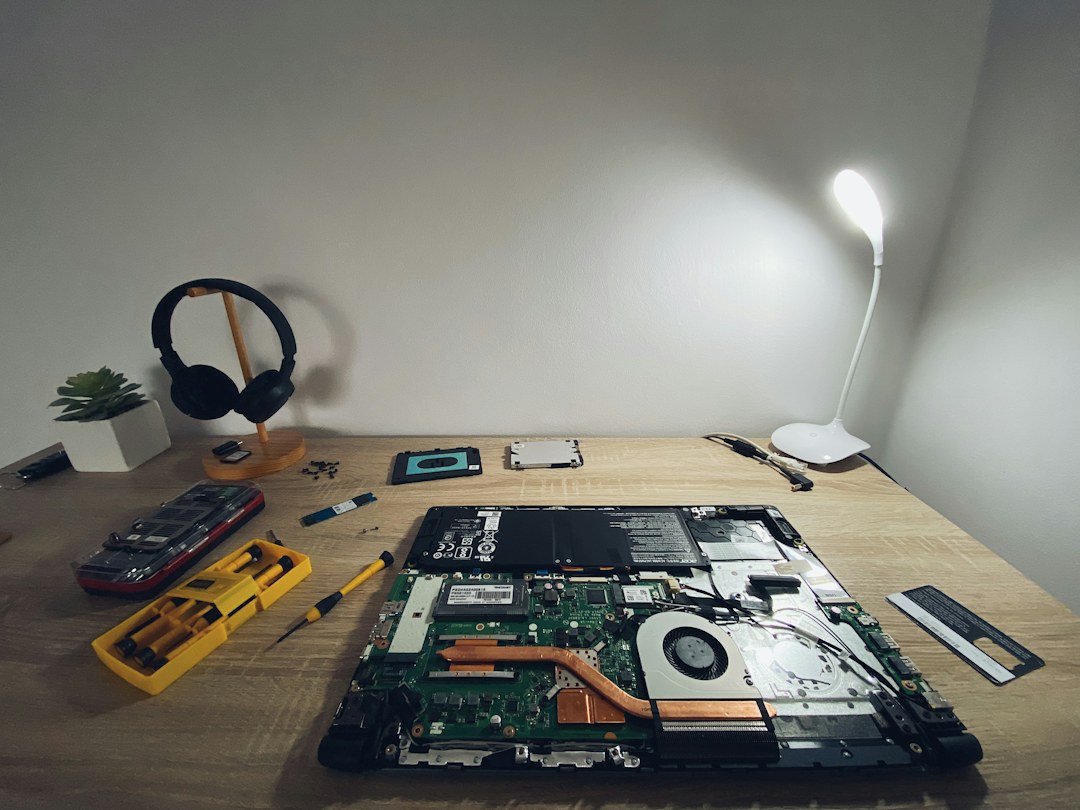
Inspect every screw. Missing, chewed, or mismatched screws suggest previous work; that is not automatically bad, but it makes repair history important. Look into vents and ports for corrosion, debris, bent contacts, or a smell associated with overheating or liquid residue.
Check the display beyond a bright wallpaper
Use solid black, white, gray, red, green, and blue backgrounds. Test at several brightness levels. Look for dead or stuck pixels, bright pressure marks, uneven backlight, image retention, discoloration, and flicker. Move the lid while watching for lines or dropouts that may reveal a cable or hinge-area fault.
For a touchscreen, draw slow lines across the full surface and test multi-touch gestures. Check that the display rotates or folds correctly if the laptop is a convertible. Examine the webcam image for haze and make sure a physical privacy shutter moves normally.
Display replacement can be one of the least economical repairs on a thin laptop. Price the exact panel and labor before accepting “it only needs a screen.”
Test the keyboard, touchpad, and ports
Open a plain-text editor and press every key, including function keys, arrows, modifiers, number pad, and backlight controls. Repeat keys several times to catch bouncing or intermittent contact. Confirm the keyboard layout matches what you expect.
Move the pointer across the touchpad, click in different areas, drag an item, scroll, and test supported gestures. A swollen battery beneath a touchpad can make clicking stiff or lift the surface, so do not assume the pad itself is the only issue.
Bring small known-good accessories: a USB drive, wired headphones if there is a jack, and the appropriate display adapter if output matters. Test every port. A USB-C connector may carry charging, data, display output, or only some of those functions. Verify the specific capability instead of judging by shape.
Verify the advertised specifications
Open system information and confirm the processor model, installed memory, storage capacity, graphics hardware, and operating-system edition. Compare them with the listing. A laptop advertised as “i7” without a generation can be much older than the wording suggests.
Check whether storage capacity is the physical total or only an available partition. Confirm that all memory is detected. If the laptop has discrete graphics, make sure the operating system sees it without an error symbol and run an appropriate light workload rather than relying on a label.
Use the exact model documentation to learn whether a missing feature was optional. A fingerprint-reader-shaped button does not prove a reader was installed. A SIM tray does not prove that the internal mobile broadband modem and antennas are present.
Assess battery health
Start with physical safety. Stop if the case is bulging, the touchpad or keyboard is lifting, the battery smells unusual, or the area becomes abnormally hot. Do not press a swollen pack back into place or continue charging it.
On Windows, a battery report can show design capacity, recent full-charge capacity, usage history, and cycle count when the hardware reports it. On macOS, System Information shows condition and cycle count. These figures are evidence, but they require context. A reported capacity can be inaccurate after long storage or a replacement with poor firmware.
Unplug the charger and use the laptop for at least twenty to thirty minutes. Watch for rapid drops, sudden shutdown, or percentage jumps. Then reconnect power, gently move the plug, and confirm that charging remains stable. Check that the charger’s wattage and model are appropriate; a low-power substitute may charge slowly or allow discharge under load.
Check storage and memory
Run the manufacturer’s built-in diagnostics where available. Review the storage drive’s health information using an appropriate trusted tool, but do not interpret a single “Good” label as a full guarantee. Listen for mechanical noises if the laptop contains a hard drive. Any important data should be backed up before stressing questionable storage.
Run a memory diagnostic, especially if the seller reports crashes or if memory was upgraded. A quick test can catch obvious errors, while intermittent faults may require longer testing. Verify that removable modules match supported specifications.
Check free storage after accounting for the operating system. A tiny drive may meet the listing yet be impractical after updates, applications, and working files. Price an upgrade only after confirming that it is physically and electrically compatible.
Test temperature, fans, and real performance
A cold laptop can hide a fault that appears after ten minutes. Run a familiar workload or manufacturer diagnostic long enough for the cooling system to respond. Watch for severe slowdown, shutdown, grinding fans, or one fan that never runs. Keep vents unobstructed.
Compare performance with credible results for the same processor and power class, but allow for configuration differences. A machine stuck in a battery-saving mode or running updates may test slowly. Repeated sharp drops under a modest load can indicate thermal throttling or power trouble.
Do not install unknown benchmark software from the seller. Use built-in tools or bring trusted installers on clean media, and remove test files afterward.
Check cameras, sound, wireless, and sleep
Record a short clip with the webcam and each microphone. Play it through both speakers and headphones. Listen for crackling, distortion, low channels, or a fan that overwhelms speech. Test the mute control and camera indicator.
Connect to Wi-Fi and Bluetooth with permission. Walk a reasonable distance from the access point. A missing antenna lead after a display repair can produce weak reception that looks normal at close range. Test airplane mode and reconnect.
Close the lid, allow the laptop to sleep, then wake it several times. Check the power button, fingerprint reader, face login where present, and wake from battery. Sleep failures can turn a portable computer into a machine that drains inside a bag.
Inspect software without inheriting it
Do not assign value to “included” paid software unless the license can legally transfer and you receive the necessary proof. An activated screen does not establish ownership. Plan to install the operating system through the maker’s official recovery or installation method.
Check firmware for an unknown administrator password. Confirm secure boot and the platform’s security hardware are available if required by the intended operating system. Do not change firmware settings on a seller’s machine unless explicitly permitted.
After purchase, erase the laptop using official instructions, apply firmware and operating-system updates, install only needed drivers from the manufacturer or platform, and scan any transferred files. Change any password entered on the machine before it was reset.
Turn faults into a total price
List the purchase amount, tax, travel or shipping, missing charger, battery, storage or memory upgrades, damaged feet, and professional labor. Add downtime and return shipping for a remote purchase. Compare that sum with a refurbished model carrying a warranty and a suitable new laptop.
Use conservative years of supported service. The repair-or-replace checklist provides a simple cost-per-year method. A $200 used laptop needing $180 of immediate work is a $380 laptop before risk, not a $200 bargain.
Know when to leave
Walk away from an ownership lock, unexplained management screen, altered identifier, swelling battery, liquid corrosion, unstable charging, repeated crash, or seller who prevents basic testing. Leave if the listing and actual specifications differ materially and the price is not renegotiated with full disclosure.
Pressure is also evidence. “Another buyer is waiting” does not change the battery condition. Pay through a method with the protections you understand, get a receipt identifying the device and seller, and keep the listing.
The practical checklist
Verify identity and ownership; inspect the body, hinges, and display; test every input and port; confirm specifications; review battery and storage health; warm the machine under a real workload; test sound, camera, wireless, charging, sleep, and updates; then calculate the complete cost.
A careful inspection cannot predict every failure. It can prevent the common mistake of pricing a laptop by its clean desktop and family name. The best used machine is not flawless; it is accurately described, supportable for the intended period, and discounted enough to cover the remaining uncertainty.
Turn the inspection into a unit-specific purchase record
For a used T14 Gen 5 AMD or EliteBook 845 G11, the exact configuration and the delivered condition should be recorded separately. The model family may offer several displays and memory arrangements. Save the seller’s specification, then compare it with the machine you receive before making changes that could complicate a return.
Group your findings into acceptable wear, a correction you have priced, and a fault that prevents the intended use. This makes negotiation more useful than presenting a long list without a cost or remedy. Keep identifying information privately with the invoice, and obtain written agreement about significant undisclosed faults. A discounted business laptop is good value only after its required corrections and service terms are understood.
| Keep in your decision record | What to write down |
|---|---|
| Promised configuration | Keep the exact model, panel and installed-memory details. |
| Delivered condition | Record findings under the agreed inspection conditions. |
| Purchase boundary | Set a maximum corrected cost and acceptable remedy. |
Apply the guide to a real shortlist:
Updated October 10, 2026: added a practical application and decision record. This documentation-based guide uses estimates where stated; individual condition, repair costs and regional support vary.