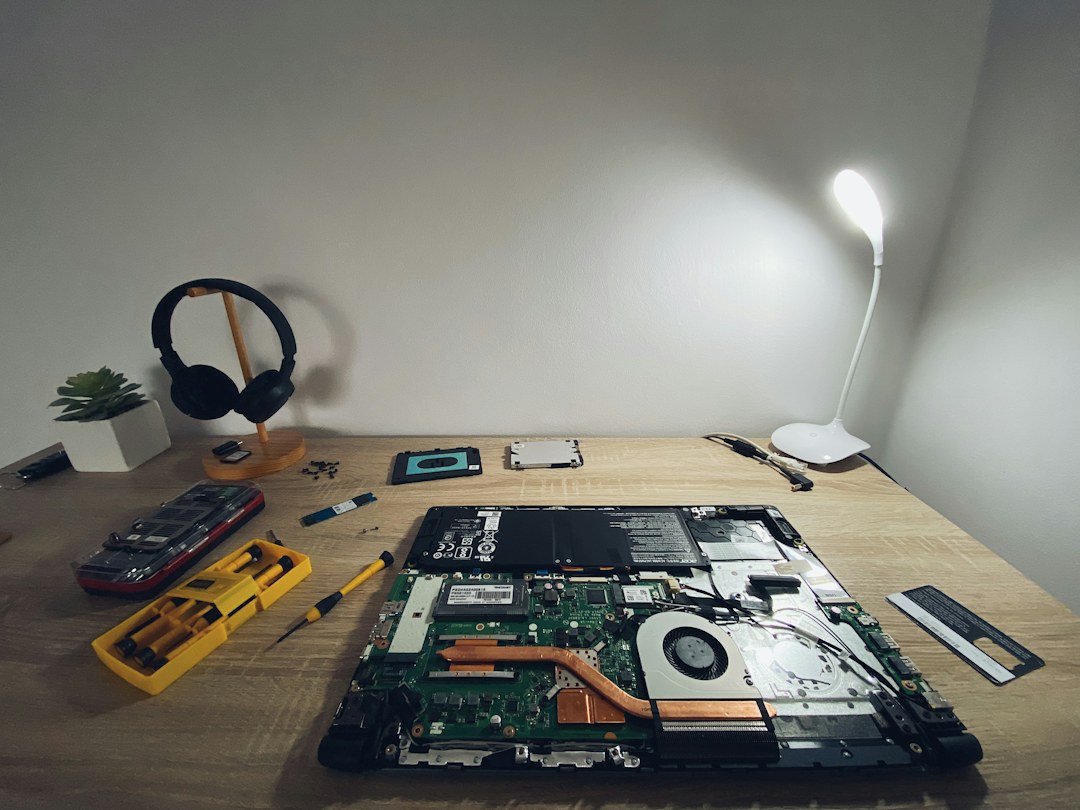
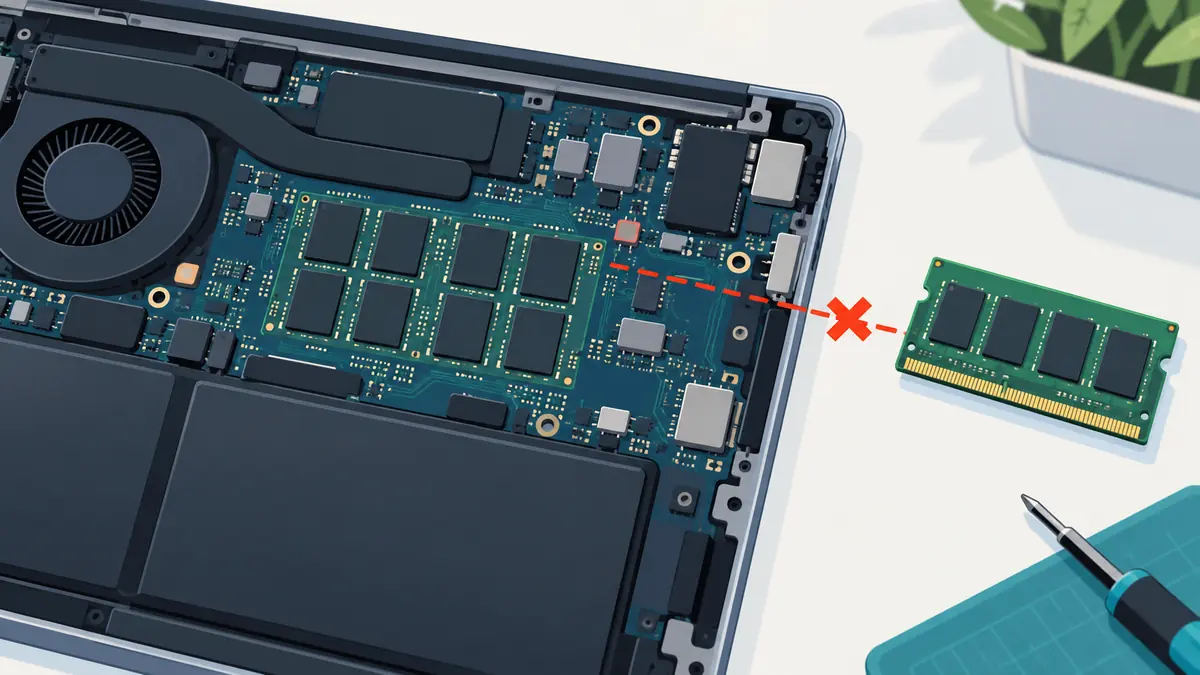
Thermal Throttling vs an Old Laptop That’s Just Slow: How to Tell the Difference
An older laptop can feel slow for software reasons, hardware reasons, or thermal reasons. The difficult case is thermal slowdown because the machine may benchmark normally for a few seconds, then lose performance only after heat builds up. A buyer can mistake that for an old processor, a weak battery, a Windows problem, or “just how this model performs.”
Modern processors protect themselves by reducing frequency and power when thermal limits are reached. Intel describes thermal throttling as a protection mechanism that lowers clock speed when temperature rises above the processor’s thermal limit. On laptops, OEM firmware can also manage power, acoustics, skin temperature, and sustained performance through platform-level controls.
Short bursts and sustained performance are different products
A thin laptop can boost aggressively for a short task, finish quickly, and cool down. The same machine may settle at a much lower power level during a ten-minute render, compile, game, or export.
That is not always a fault. Laptop cooling systems are designed around a thermal envelope, and manufacturers tune the balance between speed, fan noise, battery life, and surface temperature.
The useful comparison is against how that specific model should behave, not against the processor’s highest advertised boost clock.
What thermal throttling actually does
When a processor reaches its configured thermal threshold, it reduces frequency and power to bring temperature back under control. If temperatures cannot be controlled, systems have further protection mechanisms, including shutdown.
That means throttling is a protective response. The diagnostic question is why the system is reaching the limit and whether the resulting performance is normal for the design.
A processor can also slow down because of power limits, not temperature
Not every clock drop is thermal throttling. Mobile processors also operate within power, current, and firmware limits.
A laptop may reduce power because it is on battery, because the charger is undersized, because the OEM selected a quiet profile, or because long-term power limits are lower than the short boost limit.
If clocks fall while temperatures remain comfortably below the thermal ceiling, look for power management before blaming cooling.
Why an aging cooling system can reduce sustained speed
Cooling performance can degrade through several mechanisms:
- dust restricting airflow through the heatsink fins;
- a fan that no longer reaches expected speed;
- dried or poorly distributed thermal interface material;
- warped mounting pressure after repair;
- blocked intake vents;
- using the laptop on a soft surface that obstructs airflow.
Any of these can increase the temperature reached at a given power level.
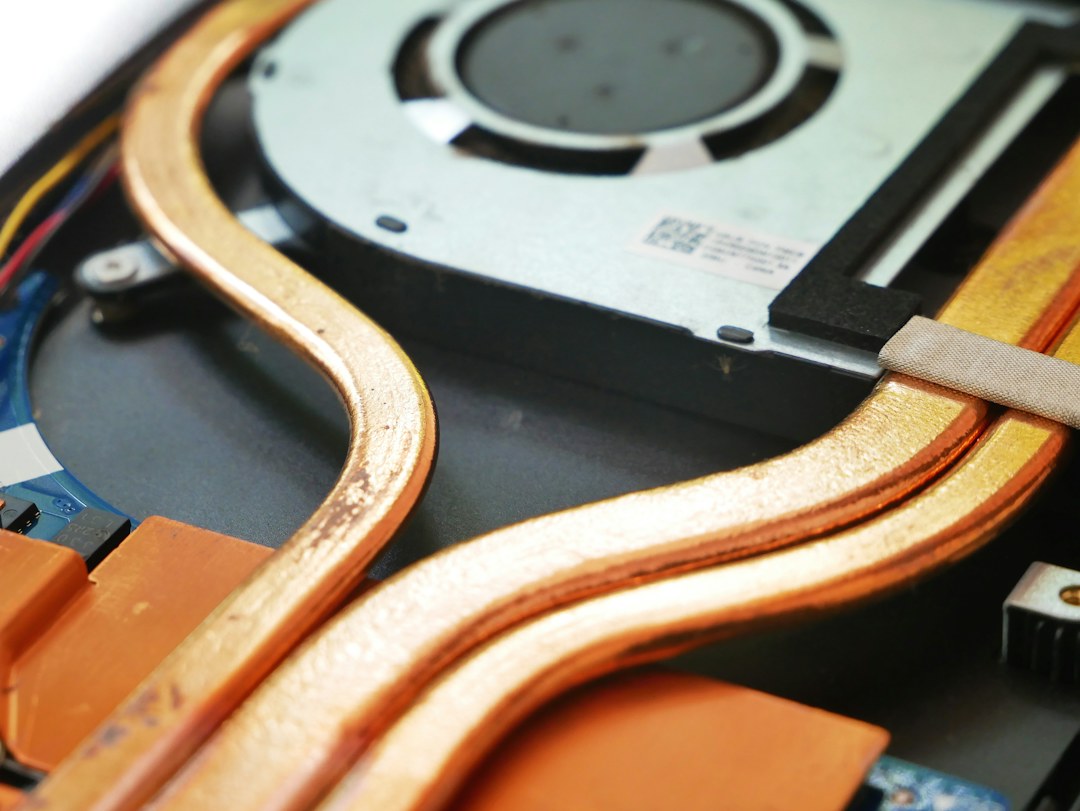
Dust often hides in the heatsink fins, not only on the visible fan
A laptop can look clean from the outside while a dense mat of dust sits between the fan and exhaust fins.
Air still moves, so the user hears the fan. But less air passes through the heatsink, so the cooling system becomes less effective.
This is why “the fan is spinning” does not prove cooling is healthy.
Fan noise can mean the cooling system is working—or struggling
A loud fan during a heavy workload may be completely normal. A quiet laptop that is throttling badly can be more suspicious if the fan never ramps up.
Listen for changes: grinding bearings, intermittent fan starts, or a fan that stays unusually low under stress.
For a used laptop, compare fan behavior with CPU temperature and sustained performance rather than judging sound in isolation.
Thermal paste is not a magic repair
Replacing thermal compound can help when old paste, poor contact, or previous service has created a real thermal-interface problem.
But repasting does not fix a clogged heatsink, failed fan, wrong power profile, undersized charger, or normal design limits.
Blindly repasting every old laptop can also create new problems if screws are overtightened, pads are misplaced, or the heatsink is mounted unevenly.
Thin laptops intentionally trade cooling headroom for size and noise
A 14-inch ultrabook and a thick workstation with the same processor family can behave very differently under sustained load.
The workstation may hold higher power because it has larger fans, more heatpipe or vapor-chamber capacity, and more chassis volume.
That difference is not automatically “thermal failure.” It is why model-specific reviews and sustained benchmarks matter when buying used.
Battery mode can look like thermal throttling
Many laptops reduce CPU and GPU power on battery to preserve runtime and avoid pulling excessive current from the battery pack.
If a used laptop feels slow, test it on the correct AC adapter and confirm the operating system power mode.
TechReviewz’s replacement-battery guide explains why power behavior can also change after battery service.
An undersized charger can cap performance
Some laptops detect charger wattage and reduce performance if the adapter cannot supply the expected power.
This can happen when a used laptop is sold with a generic USB-C charger that works for charging but is below the original adapter rating.
Before diagnosing thermals, verify charger wattage and protocol. TechReviewz’s USB-C charger guide explains why charger capacity and negotiated power are not the same thing.
The simplest thermal test is a sustained workload plus monitoring
Run a workload long enough for temperatures and power to stabilize—typically several minutes rather than a ten-second burst.
Monitor:
- CPU temperature;
- CPU package power;
- clock frequency;
- fan speed if available;
- performance score or task completion rate over time.
You are looking for correlation: temperature rises to the limit, then clocks or power fall and performance drops.
Do not use one temperature number without context
Many modern mobile CPUs are designed to operate near high temperatures under boost. Intel notes that maximum operating limits vary by processor and are often around the low 100°C range.
A brief reading near the thermal ceiling is not automatically a fault. What matters is whether the machine can sustain expected performance without pathological cycling or severe throttling.
Thermal throttling can be intermittent
A laptop may pass a light office test and fail during video export, gaming, compiling, AI workloads, or long file compression.
This is why a used laptop can feel fine during a five-minute marketplace inspection yet become frustrating after purchase.
Include at least one sustained CPU load and, if the machine has a discrete GPU, a graphics load appropriate to the device.
GPU heat can pull CPU performance down
Many laptops share heatpipes, fans, or a total platform power budget between CPU and GPU.
A CPU-only benchmark may look healthy while gaming causes both components to heat the same cooling system, reducing CPU boost or GPU clocks.
For a gaming laptop, test combined load rather than CPU-only load.
A clogged laptop may still produce a high benchmark score once
Cold-start benchmarks can hide thermal weakness because the heatsink begins at room temperature and temporarily absorbs heat.
Run the test twice or use a longer loop. If scores fall sharply after the first pass, sustained cooling deserves investigation.
Why factory reset does not fix thermal slowdown
A clean Windows installation can remove background software and power-plan confusion. It cannot remove dust, repair a fan, restore heatsink contact, or increase the physical cooling capacity.
This parallels TechReviewz’s factory-reset guide for phones: software cleanup solves software causes, not hardware physics.
When thermal slowdown is actually normal behavior
Some laptops are intentionally tuned to burst at high power and then settle. If the settled score matches reputable reviews for the same model and profile, you may be seeing normal sustained behavior.
Do not compare a thin laptop’s ten-minute output with a desktop CPU of the same generation and conclude that the laptop is defective.
When to suspect a cooling problem
Concern rises when:
- performance is far below known results for the same model;
- temperature immediately hits the limit under moderate load;
- fans behave abnormally;
- one exhaust has little airflow;
- the chassis was recently repaired;
- performance has worsened over time;
- the system repeatedly cycles between high boost and severe slowdown.
Worked example: used ultrabook that slows after three minutes
A used ultrabook scores well in a short CPU benchmark. In a ten-minute loop, temperature rises to the thermal ceiling and package power falls from 35W to 12W. Later runs are much slower.
That pattern suggests the cooling system cannot sustain the initial power level. Whether that is normal or faulty depends on the model’s expected behavior. Compare against known long-run results, inspect airflow, and verify fan operation before buying.
Worked example: slow laptop that is not thermally throttling
A laptop runs at only 1.8GHz during a workload, but CPU temperature stays around 60°C. It is on battery-saver mode with a low-power charger connected.
That is not a classic thermal-throttling pattern. Power policy is the stronger suspect.
Worked example: gaming laptop passes CPU test but stutters in games
The CPU-only test is stable, but combined CPU/GPU load pushes both temperatures high and GPU clocks fluctuate sharply. Fans are loud and exhaust airflow is weak.
This points toward a shared-cooling or airflow problem that a CPU-only inspection would have missed.
Should you repaste a used laptop immediately?
Not by default.
First establish a baseline. Record temperatures, clocks, and sustained performance. Clean external vents safely. Confirm fan operation and correct charger use. If the machine still performs abnormally and the model is serviceable, then deeper cleaning or thermal-interface service becomes a targeted repair rather than a ritual.
Repairability changes the risk of buying a thermally weak machine
A laptop with easy fan access, replaceable cooling modules, and available service documentation is less risky than a sealed design with expensive bonded parts.
TechReviewz’s repairability-score guide explains why repair cost and parts access matter more than a single score.
A practical used-laptop thermal checklist
- Verify the correct charger and power mode.
- Start from a cool idle state.
- Run a sustained CPU workload for several minutes.
- Watch temperature, clocks, and package power together.
- Repeat or loop the test.
- For gaming laptops, add a combined GPU load.
- Listen for abnormal fan behavior.
- Check exhaust airflow and blocked vents.
- Compare sustained performance with the same model, not just the same CPU.
- Price in cleaning or cooling repair if the evidence points there.
The buying question is sustained performance per condition
A used laptop is not healthy merely because it can hit its advertised boost clock for five seconds.
The more useful question is whether it can sustain appropriate performance for its design without abnormal thermal collapse. That is where cooling health, power policy, charger quality, and chassis design all meet.
Turn a slowdown into a repeatable service request
A business-laptop name is not evidence that its cooling system is healthy. When comparing a used ThinkPad T14 Gen 5 AMD with an EliteBook 845 G11, attach the same ordinary task to each offer: the project, charger, power mode and other applications should be recorded alongside the result. A warm chassis alone does not identify the cause of slow work.
Keep the observation and the conclusion separate. If the task gets slower after sustained use, record that pattern and ask the seller or technician to reproduce it. If memory or storage is already saturated at the start, investigate that constraint as well. Change one condition at a time, then repeat the task; otherwise an improvement cannot reliably be attributed to the cooling work.
| Keep in your decision record | What to write down |
|---|---|
| Repeatable task | Name the project and normal power setup. |
| Observed change | Record when the slowdown appears, without assigning a cause. |
| Revisit trigger | Repeat after an agreed repair or software change. |
Apply the guide to a real shortlist:
Updated October 10, 2026: added a practical application and decision record. This documentation-based guide uses estimates where stated; individual condition, repair costs and regional support vary.