Refurbished Laptop Return Window: A First-48-Hours Test Plan

Used & refurbished tech · Practical checklist
A laptop can boot successfully and still fail at the task you bought it for. Use the first part of your return window to verify the exact machine, repeat your normal work and create a useful fault record.
Start with the seller’s real deadline
This 48-hour plan is a scheduling aid, not a statement of your return rights. If your deadline is shorter, compress the checks. Record the seller’s actual notice, return and shipping requirements before testing.
Open and download the inspection checklist →First hour: establish the baseline
Save the listing, invoice, stated configuration, condition grade and written terms. Keep these records privately, including the serial number if supplied. Photograph the packaging and visible condition. Do not post serial numbers, account screens or personal contact details publicly.
Check the delivered CPU, installed RAM, storage and display against the exact configuration sold. A processor-family sticker does not establish the whole specification. Record discrepancies before making upgrades, opening the case or changing the installed system.
Inspect hinges, case seams, ports and the supplied charger. If you see battery swelling or smell burning, stop using the machine and contact the seller or qualified service. Do not keep testing to gather more evidence from an unsafe device.
Ask the seller to resolve unexpected ownership, activation or organization-management locks through the official owner or organization. A seller’s promise that a lock is “easy to bypass” does not make the machine ready for use. Avoid placing important personal files on the device until ownership and a trustworthy software setup are established.
Hours one to four: run the appropriate built-in checks
Follow the manufacturer’s instructions for your exact model. On supported Dell systems, Dell documents pressing F12 at startup and choosing Diagnostics from the boot menu. On an Apple-silicon Mac, Apple’s method starts by holding the power button until startup options appear, then using Command-D; Intel Mac instructions differ. Use the linked official procedures below rather than applying one brand’s shortcut to every laptop.
Record the test name, date, outcome and any error or reference code. Share identifiers privately with the seller or manufacturer when required. A successful diagnostic is evidence about that test; it is not a certificate that every port, battery or real-world workload is reliable.
Next, test the things a general scan may not answer: every key, the trackpad, microphone, webcam, speakers, required ports and your own network connection. Use familiar peripherals that you already know work. If a port appears unreliable, repeat with a second known-working cable or device and describe exactly what changed.
Obtain a battery-condition reading and, where available, a storage diagnostic. Our battery-capacity calculator helps interpret the ratio in a Windows report. Keep capacity, observed runtime and physical condition as separate findings.
Hours four to twenty-four: test the job, not just the specification
Choose a short version of your actual work. That might be a video call with your normal headset, your spreadsheet with its usual add-ins, or a representative photo project. Record what you opened, how the device was powered, which display was attached and what failed or felt unacceptable.
| Check | What to record | Why repeat it? |
|---|---|---|
| Real application workflow | App/version, file type, peripherals, outcome. | A generic benchmark cannot prove your exact setup works. |
| AC and battery use | Power mode, charge start/end, elapsed time, shutdowns. | Behaviour can change when the charger is disconnected. |
| Sleep and wake | Closed-lid or menu sleep, connected devices, wake outcome. | Intermittent faults may only appear after a state change. |
| Restart and reconnect | Whether Wi-Fi, display, audio and accessories return normally. | A one-time successful connection may hide a repeat problem. |
Keep the workload reasonable and ventilate the laptop on a firm surface. Do not run extreme stress tests merely to prove that an ageing machine can survive them. If performance collapses only after warming up, record that pattern and compare it with our guide to heat-related slowdown; the symptom alone does not establish the faulty part.
Write a fault record that someone else can reproduce
“USB unreliable” is difficult to act on. A useful hypothetical record is: “At 14:10, the right USB port disconnected a known-working mouse twice during a 20-minute document session. The same mouse stayed connected on the left port. After a restart, the right-port fault returned.” Add the cable/device details and a short recording if needed, keeping personal information out of the frame.
Separate observation from diagnosis. Record “unexpected shutdown at 28% charge” rather than “battery definitely defective.” This gives the seller or service provider a concrete problem to investigate without turning a guess into a claim.
Before the deadline: choose a documented next step
- Keep: configuration matches, your required workflow works, and remaining limitations are acceptable at the price paid. Save the baseline record for comparison later.
- Clarify: one material point is uncertain. Ask for a written answer or test result while protecting the actual return deadline.
- Seek a remedy: document a mismatch or reproducible failure and use the seller or marketplace’s stated process. Do not assume that a repair discussion automatically extends the return window.
If a repair is proposed, obtain the scope, cost, timescale and warranty terms in writing. Use the repair-or-replace calculator to compare future costs. A low repair quote cannot resolve an ownership problem, an unsuitable workflow or inadequate software support.
For the checks to make before paying, read our existing used-laptop inspection guide. Use the downloadable checklist as your own local test record; ticked means checked, not automatically passed.
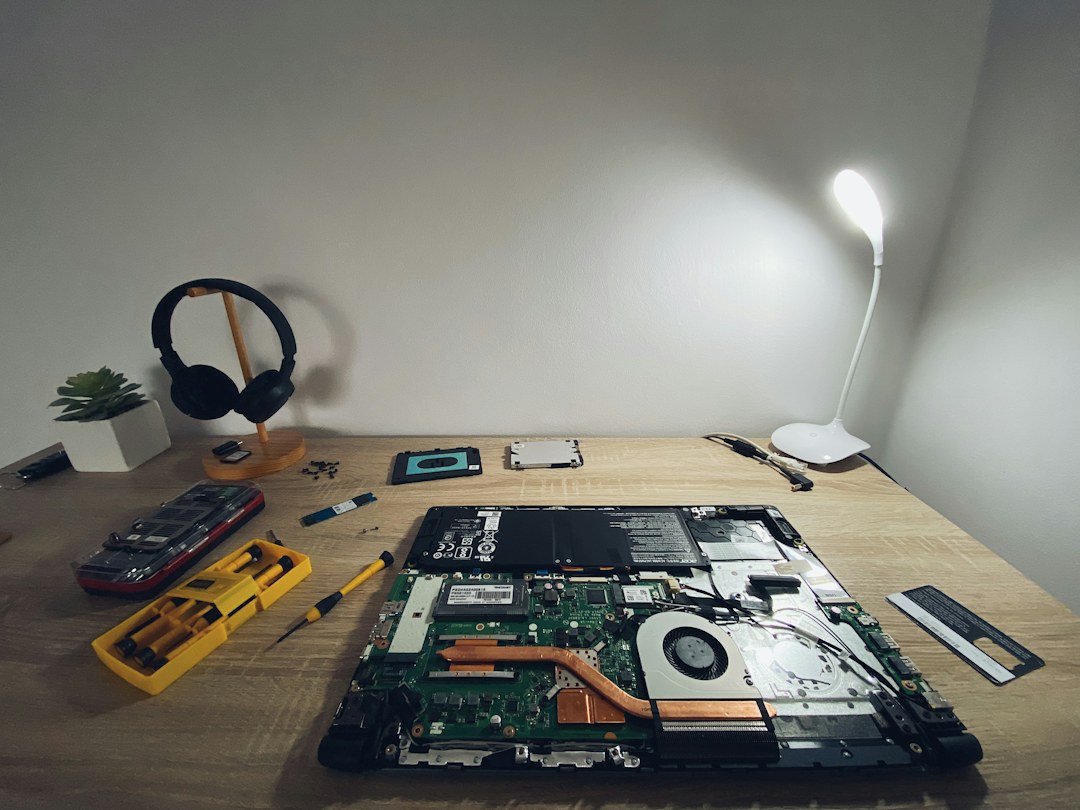
Sources and method: Dell: preboot diagnostics; Apple: Apple Diagnostics. The schedule, observation table and example fault record are original TechReviewz analysis. The diagnostic shortcuts are model-dependent; follow the manufacturer. This guide does not report hands-on testing of a refurbished unit. Featured image is an inspection illustration. Report a correction.