512 GB or 1 TB? Plan Laptop Storage From Your Actual Files
Repairability & upgrades · Capacity planning
Choosing between 512 GB and 1 TB is easier when you stop comparing labels and estimate the files you will actually keep. Start with the working volume’s usable capacity, include your apps and operating system, and leave room for the way your projects grow.
The decision to make first
Decide what must stay available on the laptop. A project you need offline belongs in the local-storage plan even if another copy exists in the cloud.
Advertised capacity and usable space answer different questions
A decimal gigabyte contains 1,000,000,000 bytes; a binary gibibyte contains 1,073,741,824 bytes. NIST documents both definitions. A nominal 512 GB therefore equals about 476.84 GiB before accounting for partitions and other allocations. This conversion is not evidence that storage has disappeared.
For a planning calculation, use the actual volume you will save work to. Recovery partitions, other volumes and unallocated space should not be counted as available room on that volume. Some interfaces use labels differently, so keep the units consistent when you copy figures between a specification sheet and a calculator.
In Windows, Settings → System → Storage provides a breakdown of consumption. Microsoft’s documentation identifies categories such as installed apps, temporary files, and system and reserved space. Read those categories before assuming that every large item is a personal file you can move.
Build a baseline that includes the inconvenient files
Write down current used space, not just the size of the Documents folder. Your baseline should include the OS, applications, game libraries, downloaded media, local cloud copies, project caches you normally keep, and files belonging to other users of the machine.
Then identify temporary peaks. A video export can coexist with its source footage. A photo editor can create previews and working copies. A large update can need room while it is being applied. These peaks should not be mistaken for permanent monthly growth, but a plan that ignores them may still leave you unable to finish a job.
A worked example: free space remains, but the chosen margin is missed
Suppose a working volume has 480 GiB available, currently uses 220 GiB and gains a net 8 GiB per month after normal archiving. After 24 months, projected usage is 220 + 8 × 24 = 412 GiB. That leaves 68 GiB, or about 14.17% of the volume.
If you choose a 20% free-space margin, that volume would need to retain 96 GiB free. The projection misses your chosen margin by 28 GiB even though the disk is not projected to be full. The distinction matters: a planning preference is not the same as a hard capacity limit.
| Scenario | Projected used after 24 months | Free on a 480 GiB volume |
|---|---|---|
| 4 GiB net monthly growth | 316 GiB | 164 GiB |
| 8 GiB net monthly growth | 412 GiB | 68 GiB |
| 12 GiB net monthly growth | 508 GiB | 28 GiB beyond capacity |
These are illustrative scenarios, not measurements of a particular laptop. Enter the middle scenario in the planner, then test a slower and faster growth rate. The model is linear; a new job or hobby can change the pattern abruptly.
Set the margin for your workflow
Twenty percent is a sample planning choice, not a universal rule for every SSD or operating system. Choose a margin that accommodates your working files and temporary peaks. The planner’s minimum-capacity result is usable capacity for the model, not an advertised drive size or a promise of performance.
For the 412 GiB future-usage example, retaining a 20% margin requires 412 ÷ 0.8 = 515 GiB of usable capacity. A product’s actual working-volume capacity must be compared with that requirement. Do not compare the 515 GiB result directly with a differently defined marketing label.
Price the whole storage arrangement
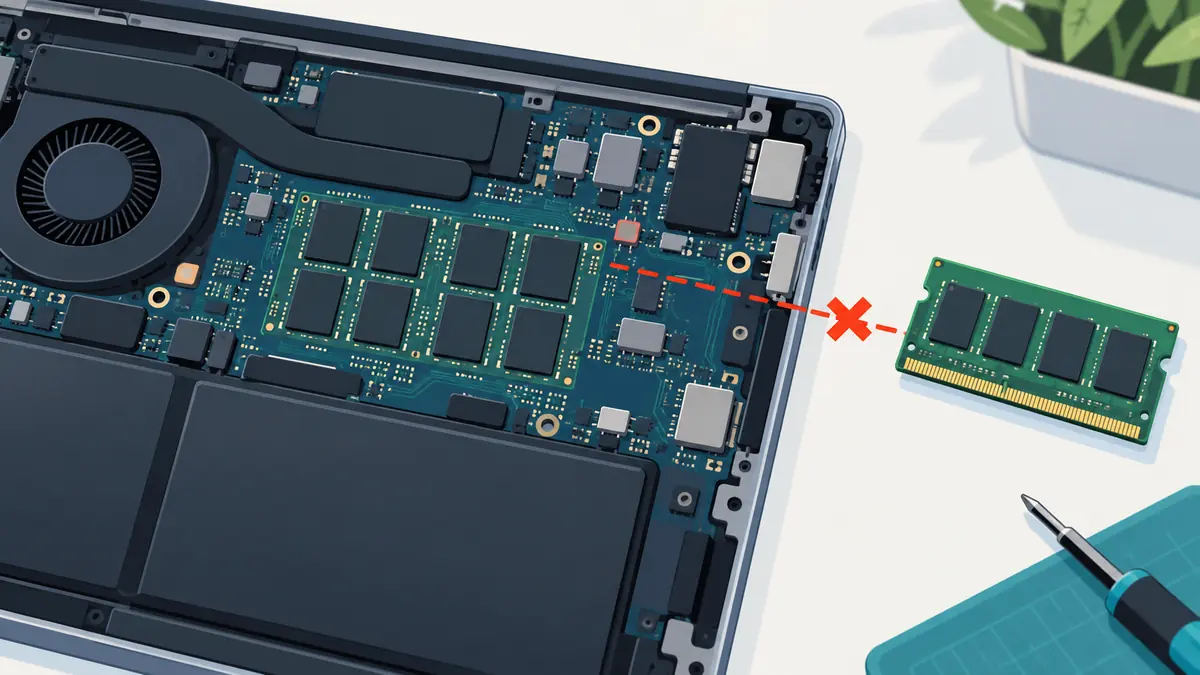
- Internal storage: check whether the exact laptop allows replacement or expansion, and whether that affects service arrangements.
- External storage: include the drive, cable, port availability and the inconvenience of carrying it.
- Cloud storage: include subscription cost, offline access requirements and the time needed to upload and restore.
- Backup: allow for a separate recoverable copy of important files. Moving your only copy to another drive does not create an additional copy.
Estimate transfer time before planning a large archive move. For an older laptop, also read our existing RAM-versus-SSD upgrade guide. More space and faster work are separate questions.
Sources and method: NIST: binary prefixes; Microsoft: storage settings. The scenarios, margin comparison and purchasing workflow are original TechReviewz analysis. No drive or laptop was benchmarked for this guide. Report a correction.