RAM Upgrade vs SSD Upgrade: Which One Makes an Old Laptop Faster?
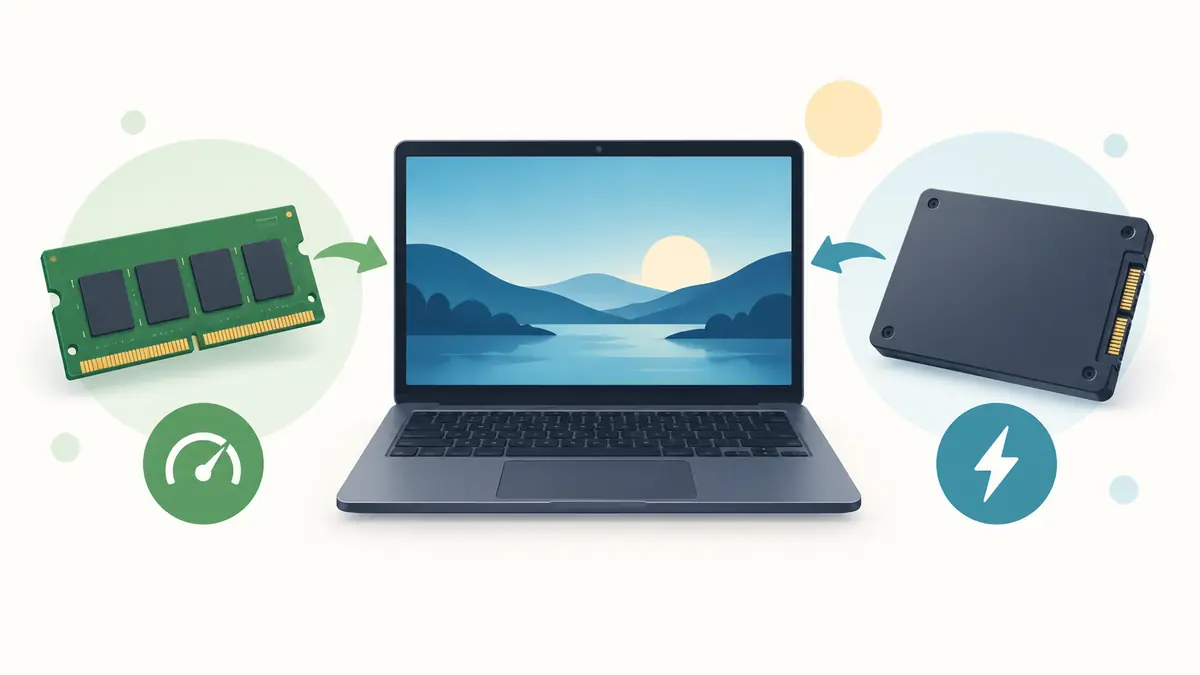
“Add RAM” and “install an SSD” are the two standard answers given to anyone with an aging laptop. Both can produce a real improvement, but they solve different shortages. Buying the wrong one may leave the machine feeling almost unchanged.
RAM is the short-term workspace used by active programs. An SSD is persistent storage for Windows, applications, and files. More memory helps when the laptop cannot keep enough active work ready. Faster storage helps when reading and writing data is the delay. The right upgrade follows the bottleneck rather than the most familiar advice.
The short answer
If the laptop still starts from a mechanical hard drive, moving the operating system to an SSD usually creates the broadest visible improvement. Startup, application launches, updates, searches, and file operations can all become quicker. It does not make the processor calculate faster, but it removes many waits caused by the moving parts and high access latency of a hard drive.
If the laptop already uses an SSD but becomes sluggish when several tabs and programs are open, a RAM upgrade is more likely to help. Extra memory reduces the need to move active data between fast RAM and much slower storage. This is especially noticeable during video calls, photo editing, large spreadsheets, development work, and heavy browsing.
That rule is a starting point, not a diagnosis. A full SSD, overheating processor, unwanted startup software, failing drive, or unsupported operating system can imitate either problem.
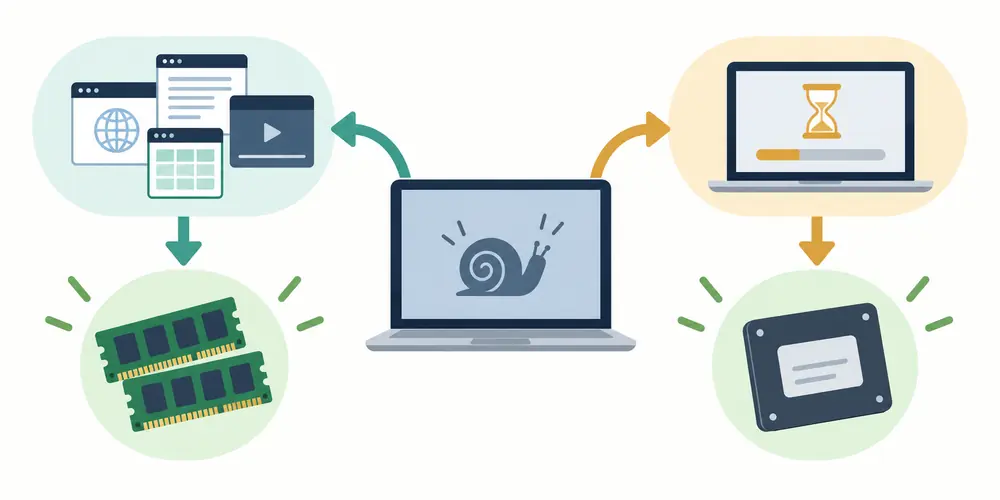
What insufficient RAM feels like
A laptop with too little memory may feel normal just after startup and deteriorate as work accumulates. Switching to a browser tab causes a pause. Returning to a document reloads content. Audio breaks up during a call when another application opens. The storage activity indicator stays busy even though the owner is not deliberately copying files.
The operating system uses storage as an overflow area when physical memory is under pressure. This paging or swapping prevents an immediate crash, but it is slower than keeping active data in RAM. An SSD makes the overflow less painful than a hard drive does; it does not make eight gigabytes behave exactly like sixteen.
Measure during the workload that causes trouble. On Windows, open Task Manager and review memory use while the usual browser tabs, call software, documents, and background tools are running. On macOS, Activity Monitor’s Memory Pressure display is more informative than treating “used” memory alone as a fault. Modern systems deliberately use available memory for caching, so a high number is not automatically bad. Persistent pressure, heavy swapping, and pauses together are stronger evidence.
What slow storage feels like
Storage is a likely constraint when startup takes a long time, applications open slowly, updates appear stuck, file searches crawl, or the machine becomes unresponsive during disk activity. A mechanical drive may click, retry, or report health warnings as it wears. Back up at once if there are unusual noises, missing files, read errors, or sudden freezes. An upgrade is not a substitute for rescuing data from a failing drive.
A nearly full SSD can also perform poorly. The operating system needs room for updates, temporary files, caches, virtual memory, and housekeeping. Before replacing hardware, clear obvious waste, move archives to an appropriate backup, and confirm how much usable space remains. Microsoft’s storage tools can show categories consuming capacity in Windows.
Do not assume that a higher advertised sequential speed will transform ordinary use. Moving from a hard drive to almost any suitable SSD is a large change in access behavior. Moving from a healthy SATA SSD to a premium NVMe model may be much less dramatic for email and documents, even if benchmark results are impressive.
Check what is already installed
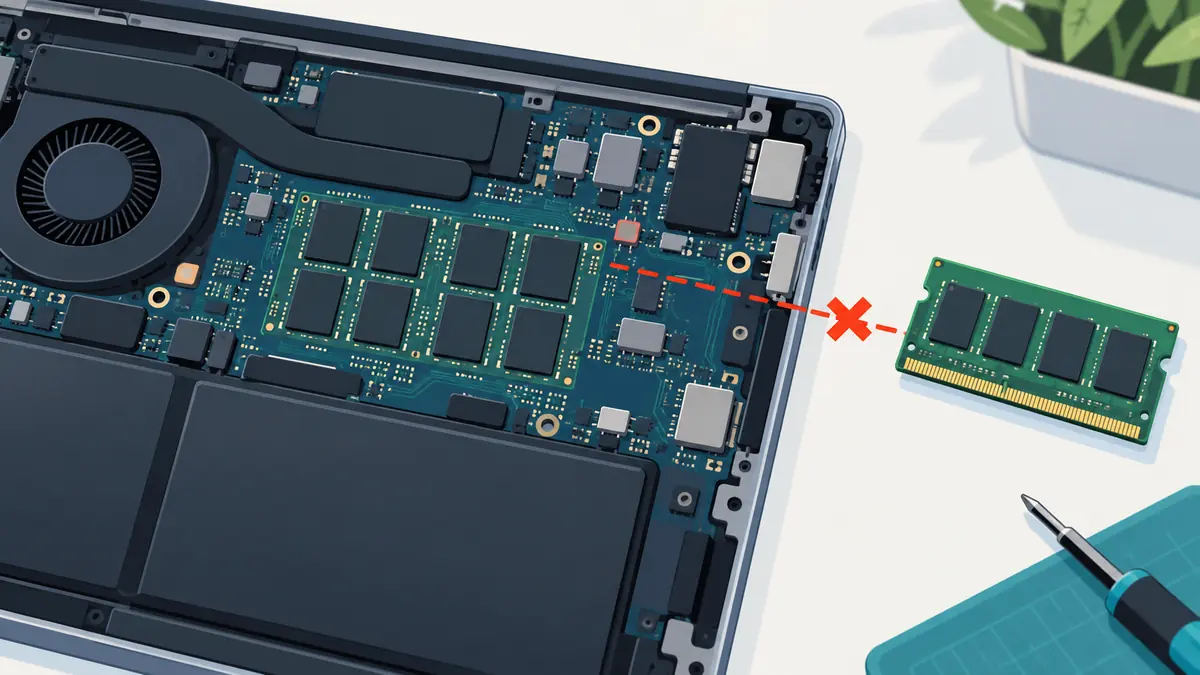
Find the exact laptop model and configuration. A product family name is often not enough because manufacturers sell the same exterior with different boards, drive formats, and memory arrangements. Look for a service manual, specification sheet, or parts list tied to the model or service tag.
Confirm four facts before shopping:
- Whether any RAM is replaceable or all of it is soldered.
- The supported memory type, speed, module count, and stated maximum capacity.
- The installed storage interface and physical size, such as 2.5-inch SATA or a particular M.2 length.
- Whether opening the laptop affects warranty coverage or requires special safety steps.
Some machines have one soldered memory portion plus one socket. Others have an empty storage connector but require a bracket or cable that was not included. An M.2 slot does not by itself prove compatibility with every M.2 SSD; the keying, protocol, length, firmware, and available clearance still matter.
When an SSD should come first
Prioritize an SSD when the operating system is installed on a working mechanical hard drive and the rest of the laptop remains suitable. The improvement tends to affect many short operations throughout the day rather than one specialist task. It can make an old system feel responsive enough to keep using.
An SSD also comes first when the existing drive is unreliable or too small, although a suspected failure changes the process. Make a verified backup or seek data-recovery help before cloning. Copying every sector from a damaged drive can stress it, and a clone can reproduce corrupted software. A clean operating-system installation may be better after files are secured.
Choose capacity with free space in mind. A nominal 500 GB drive does not provide the full decimal figure as usable space after formatting and system partitions, and filling it to the edge leaves little working room. Inventory the current data, decide what belongs locally, and allow for realistic growth.
When RAM should come first
Prioritize RAM when monitoring shows memory pressure during normal work and the laptop already has responsive storage. The benefit is clearest when the workload repeatedly exceeds installed capacity. Adding memory may let a browser, meeting app, office suite, and research tools remain open together without constant reloading.
Capacity is more important than buying a module with an exciting speed label the laptop cannot use. Match the specifications supported by the board and processor. Memory commonly operates at the speed allowed by the slowest relevant component. Mixing modules may work, but differences in size, rank, timings, or voltage can affect stability or channel operation.
Use a compatible kit when the manufacturer recommends matched modules. After installation, verify the detected capacity and run the laptop’s memory diagnostic. A machine that boots is not proof of complete stability.
What if both are weak?
A hard-drive laptop with low memory can benefit from both upgrades. If the budget permits only one, identify which delay costs more time. For a basic laptop with four gigabytes of RAM and a hard drive, an SSD may make booting and launching far faster, yet modern multitasking can still overwhelm memory. The experience improves, but the original capacity ceiling remains.
Price the complete job before starting. Include the SSD, memory, any mounting hardware, an enclosure or adapter for migration, labor, and a fresh battery if one is already failing. Then compare that total with a suitable replacement using the repair-or-replace cost checklist. An inexpensive component does not justify upgrading a laptop with cracked hinges, unreliable charging, and no supported operating system.
An upgrade cannot fix every slow laptop
Neither RAM nor an SSD repairs a processor that is simply too slow for required software. They do not add a capable graphics processor, brighten a poor display, or restore a battery. They cannot stop thermal throttling caused by a blocked cooling system. They also cannot make incompatible hardware meet a new operating system’s security requirements.
Software problems deserve attention first when performance changed suddenly. Scan for malware, inspect startup applications, complete updates, remove programs that are no longer needed, and test with a clean boot if appropriate. Keep backups before reinstalling or resetting anything. If the machine freezes during its own diagnostic tools, investigate hardware health rather than assuming clutter.
Cloning versus a clean installation
Cloning copies the old drive’s system, applications, accounts, and problems to the SSD. It is convenient when the installation is healthy and the new drive has enough capacity. Use the SSD maker’s instructions or a trusted migration tool, keep the old drive untouched until the copy is verified, and confirm that encryption recovery information is available.
A clean installation takes longer because applications and settings must be rebuilt, but it avoids carrying years of abandoned utilities and damaged system files forward. It is often the better choice when the current installation is unstable, infected, or filled with manufacturer utilities the owner no longer wants.
Whichever route is used, do not treat one copy as a backup. Verify important files separately before opening the laptop. If the old drive is reused in an enclosure, erase it only after the new system and independent backup have both been checked.
A simple test sequence
- Back up important data and verify the backup.
- Install operating-system updates and run security and hardware checks.
- Record storage type, free space, memory capacity, and exact model.
- Reproduce the slowdown while watching memory, processor, and storage activity.
- Check the service manual for replaceable parts and compatible specifications.
- Price the targeted upgrade, necessary accessories, and labor.
- Compare the total with the years of supported use likely to remain.
This sequence may reveal that no purchase is needed. Removing an obsolete startup tool or freeing enough working space can solve a particular delay. It may also reveal that both advertised upgrades miss the real problem.
The practical verdict
Choose an SSD first for a laptop that still boots and works from a mechanical hard drive. Choose RAM first when a laptop with decent storage slows mainly under multitasking and measured memory pressure. Upgrade both only when both constraints are present and the rest of the machine warrants the cost.
The best upgrade is the one tied to evidence. A component should have a specific job: reduce storage waits, prevent memory pressure, replace a failing part, or provide needed capacity. If the seller cannot explain which measured bottleneck it addresses, keep diagnosing before spending.
After the upgrade, measure the result
Record the same tasks and timings used before the work. Check startup, opening the main applications, switching between a typical set of tabs, exporting a familiar file, and resuming from sleep. The goal is not a perfect benchmark score; it is a clear reduction in the waits that interrupted real work.
Confirm that the operating system sees the new memory or full SSD capacity. Check for firmware updates through the laptop and component makers, then monitor temperatures and unexpected errors for several days. Keep the old drive unchanged until the new installation has completed normal work and a fresh backup has been verified.
If performance still disappoints, do not immediately buy the other component. Repeat the monitoring. The upgrade may have removed one bottleneck and exposed another, or the original diagnosis may have been incomplete. Processor saturation, network delay, browser extensions, thermal limits, and cloud synchronization can all remain. A measured before-and-after check protects the rest of the budget.
Attach an upgrade to a task it should improve
A T14 Gen 5 AMD or Framework Laptop 13 may offer useful component flexibility, but an available upgrade is not automatically a needed one. Choose a specific task that currently falls short and observe the relevant resource pressure during that task. Then price the compatible change, including installation and any storage migration.
Keep the before-and-after comparison under similar conditions and change one major component at a time when practical. If the original problem persists, investigate the next constraint rather than treating every upgrade as a necessary step. Memory capacity, drive responsiveness and processor limits affect different work. The useful result is a task that now meets your needs, not simply a larger specification or a synthetic score without a clear use case.
| Keep in your decision record | What to write down |
|---|---|
| Target task | Describe the work that currently fails the requirement. |
| Observed constraint | Record resource pressure during that same task. |
| Success condition | Set a practical result to check after the change. |
Apply the guide to a real shortlist:
Updated October 10, 2026: added a practical application and decision record. This documentation-based guide uses estimates where stated; individual condition, repair costs and regional support vary.