MacBook Air M4 Ownership Review: Choose Memory Once, Price the Whole Working Setup
The 13-inch MacBook Air M4 is worth considering when your work fits macOS and you want a portable everyday computer without buying a larger professional model. The decision deserves particular care at configuration time: memory and internal storage should be treated as choices for the intended ownership period, rather than upgrades you will casually add later. A discount on the wrong configuration may be less useful than a smaller discount on the right one.
Apple’s specifications for this 2025 model list 16GB of unified memory, configurable to 24GB or 32GB, and internal storage options from 256GB to 2TB. This review uses published specifications and buying logic. It does not present measured thermal behaviour, runtime, speaker quality or performance results.
Begin with the software that earns its place
Before comparing memory capacities, confirm that the applications, plugins, peripherals and licence arrangements you rely on work in the intended macOS setup. A browser-based workflow is relatively easy to check; a specialist accounting, engineering, audio or enterprise workflow may have less visible dependencies. Include the exact versions rather than assuming a product family name guarantees compatibility.
If your workflow depends on Windows-only software, treat an alternative way of running it as a separate project with separate costs and limitations. A virtualised environment is not automatically equivalent to the computer on which the software currently runs. Check the vendor’s support terms, device drivers and any hardware licences before deciding the Air is the economical purchase.
Choose memory from simultaneous work
List the apps you keep open together during a busy day. A document, ordinary browsing and messaging do not place the same demands on memory as several virtual machines, large media projects or a heavy development environment. The useful question is how your work behaves under pressure, not whether 16GB is universally enough or universally inadequate.
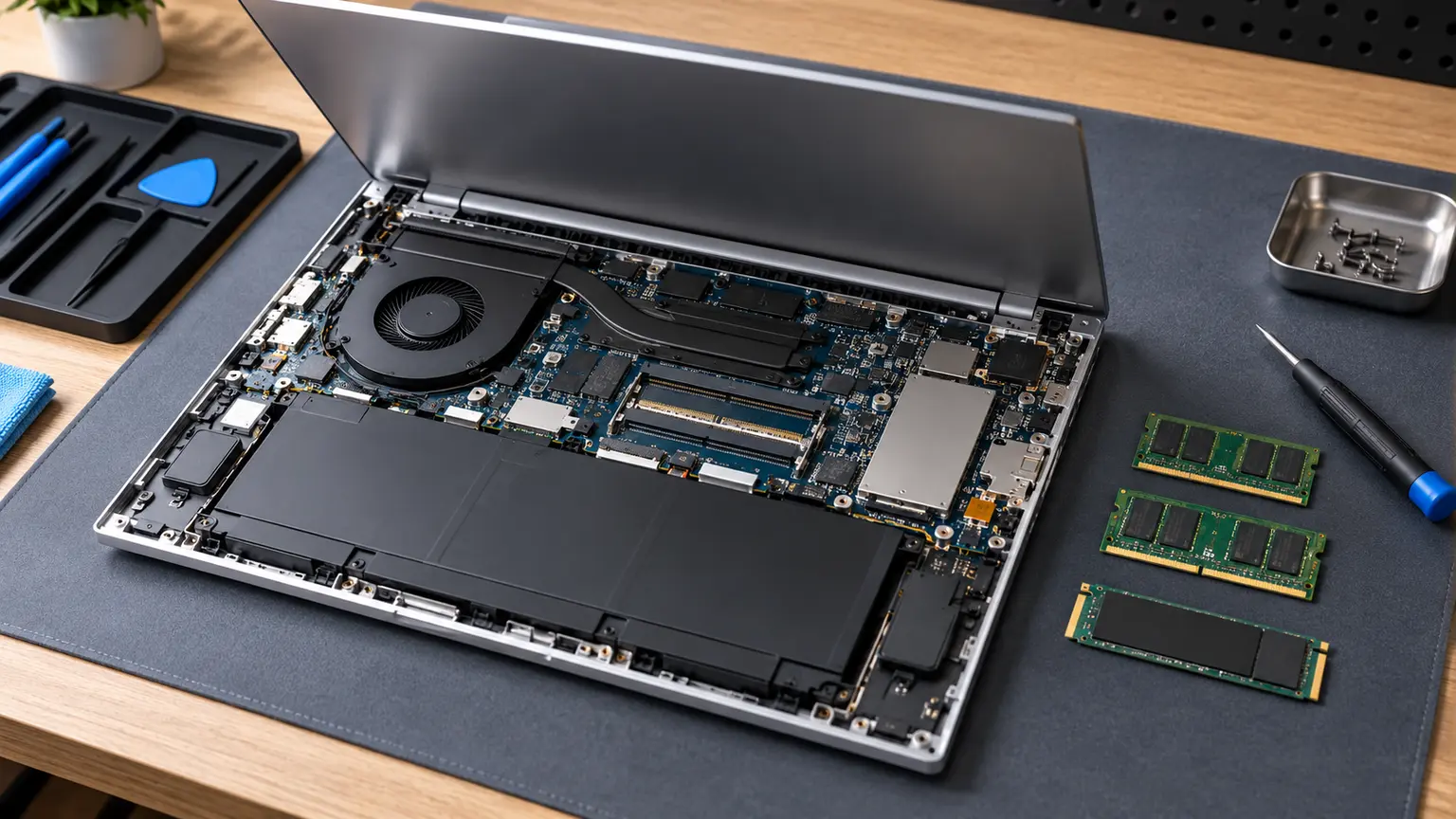
Treat the chosen memory as part of the fixed purchase configuration. Extra storage, a faster dock or a new battery is not a substitute for insufficient memory. If you expect the workload to change, price the relevant higher-memory configuration now and compare it with another suitable machine. A hypothetical future upgrade should not rescue a configuration you already expect to outgrow.
External storage solves only some capacity problems
An external drive can be sensible for archives, media and backups. It can be less convenient for files needed during travel, work that must remain available without an accessory or software that expects data on internal storage. Consider the risk of forgetting a drive, the need for another port and the backup arrangement for data held on it.
An illustrative owner with 110GB of apps and system data plus 120GB of active files already needs 230GB before leaving comfortable working space. A smaller configuration would require a deliberate external-storage or file-retention plan. Those numbers are not measurements of macOS or this laptop; they show why your own occupied storage is more useful than a blanket capacity recommendation.
A desk setup has its own bill
Apple lists two Thunderbolt 4 USB-C ports and support for up to two external displays at up to 6K and 60Hz alongside the built-in display. That capability does not mean every dock, cable and monitor combination will deliver the setup you intend. Check the specific connection path, display specifications and peripherals you will use.
Price the required adapters, storage, cables and monitor connections with the laptop. If a cheaper alternative already includes the connections you need, include that difference rather than treating accessories as invisible. The Air may still be preferable for portability or macOS, but the comparison should acknowledge the complete working setup.
| Purchase question | Practical check |
|---|---|
| Will the software run? | Exact apps, plugins, licences and peripherals |
| Is memory enough for the whole period? | Your simultaneous workload and realistic growth |
| Where will active files live? | Internal space plus a deliberate external-storage plan |
| Will the desk setup work? | Dock, displays, cables and accessory compatibility |
| Can it be serviced? | Local battery and display quotes for this model |
A used Air needs account and condition checks
Verify the exact chip, model year, memory and storage in the machine rather than relying only on a box label. Ask for legitimate account removal and check that setup is possible without an unexpected management or activation restriction. An ex-business laptop with unresolved management is not made usable by a clean-looking enclosure.
Then inspect the keyboard, display, charging, ports, camera and battery information within the return period. Obtain repair history and compare the price with a warranted unit of the same configuration. A low battery cycle count cannot prove the whole machine is healthy, and a factory reset cannot remove a genuine organisational ownership restriction.
Set a configuration ceiling before shopping
It is easy to add memory, storage and accessories until an affordable Air becomes an expensive configuration. Write down the minimum setup that meets your work, then price that complete setup against alternatives. Upgrade where a requirement justifies it, not because each incremental cost appears small by itself.
The strongest case for the M4 Air is a buyer whose applications fit macOS, whose configuration will remain sufficient and whose mobility priorities justify the complete price. The weaker case is buying a base unit first and assuming its fixed choices can be cheaply corrected later. Decide memory, active storage and desk connections before accepting the discount.