Repair or Replace a Slow Laptop? A Practical Cost Checklist

A slow laptop creates a surprisingly emotional decision. One owner replaces a perfectly serviceable machine after a bad week of browser freezes. Another keeps paying for small repairs on a computer whose battery, display, storage, and operating-system support are all approaching the end at once. Neither price nor age settles the question by itself.
The useful comparison is not “repair bill versus new-laptop price.” It is the cost of getting a dependable result for the number of useful years you are likely to receive. That requires a short diagnosis, an honest look at the laptop’s limits, and a budget that includes more than the advertised purchase price.
Begin with the problem, not the age
“Slow” can describe several different faults. A laptop may take five minutes to start because its storage is nearly full. It may open programs slowly because it still uses a mechanical hard drive. It may feel fine until a video call begins because eight gigabytes of memory is no longer enough for the owner’s workload. It may also be throttling performance because dust, a failed fan, or dried thermal material has allowed temperatures to climb.
Those problems do not have the same repair cost. Before pricing anything, write down when the delay occurs. Note startup time, free storage space, memory use during a normal work session, battery runtime, fan noise, unexpected shutdowns, and any physical damage. This turns a vague complaint into a list a technician can test.
Run the operating system’s built-in security scan and install pending updates. Check Task Manager on Windows or Activity Monitor on macOS to see whether one process is consuming most of the processor, memory, or disk. Back up important files before making changes. A backup is part of diagnosis because an aging drive can fail while it is being tested.
The first cost: making the current laptop dependable
Ask for an itemized estimate rather than a single repair number. The estimate should separate the part, labor, diagnostic charge, tax, shipping, and any warranty on the work. If a repair requires adhesive, a bottom cover, new screws, or data transfer, those items should be visible too.
Then identify the work that is necessary now. A storage upgrade may improve speed, but it does not solve a swollen battery. A fresh operating-system installation may remove software clutter, but it does not repair failing memory. Cleaning a cooling system can stop thermal throttling, yet it cannot make an unsupported processor eligible for a new operating system.
A practical estimate has three columns:
- Required: work needed for safe, reliable use, such as replacing a swollen battery or failing drive.
- Useful: upgrades that directly address the measured bottleneck, such as adding memory or replacing a hard drive with an SSD.
- Optional: cosmetic parts or improvements that do not change whether the laptop can do its job.
Compare the required-plus-useful total with replacement. Keeping optional work separate prevents a scratched lid from making a sensible repair look uneconomical.
The second cost: what the laptop still cannot do
A successful repair restores a machine to a workable condition; it does not turn it into a current model. Check the limits that will remain after the bill is paid.
Processor performance matters when the workload includes code compilation, large spreadsheets, 3D work, high-resolution video, or newer games. Integrated graphics that were adequate for office tasks may never meet a new creative application’s requirements. A display with poor brightness or low resolution may remain unpleasant even after the rest of the computer is faster. A weak wireless adapter may limit network performance. An old webcam and microphone can matter more than benchmark scores to someone who works on calls all day.
Software eligibility deserves its own line. Microsoft publishes minimum requirements for Windows 11, including supported hardware and security capabilities. A Windows laptop that cannot run a supported operating system may still function, but its remaining safe use is more limited. Apple likewise classifies products as vintage or obsolete for service purposes based on time since distribution, which can affect parts and repair availability. For a fuller way to judge age and support together, see our guide to how long a laptop should last.
The third cost: replacing it properly
The shelf price is only the start of a replacement budget. Add any memory or storage configuration needed for the intended workload. Include a dock, display adapter, charger for a second location, protective case, extended warranty if it is genuinely useful, and paid software that cannot be transferred.
Migration has a cost even when no technician sends an invoice. Files must be copied and verified. Passwords, browser profiles, encryption keys, printer drivers, accessibility settings, and specialist applications may need attention. A freelancer can attach a real value to the hours lost. A family may simply need to reserve a weekend. Either way, ignoring setup time makes replacement look cheaper than it is.
Do not compare a repaired business laptop with the cheapest new computer in a store unless the cheaper model can perform the same work. Match memory, usable storage, display quality, ports, keyboard, repair options, battery expectations, and support. A low price attached to inadequate hardware is not a saving.
Estimate useful years, not just today’s price
Suppose a repair costs $280 and is likely to provide two more dependable years. Its simplified cost is $140 per added year. A suitable replacement costs $900 after accessories and migration, and you expect five useful years: $180 per year. On those assumptions, the repair is financially credible.
Now change one fact. The current laptop also needs a $160 battery within six months. The repair path becomes $440, or $220 for each of the two expected years. If the new laptop includes a three-year warranty or is likely to serve longer, replacement becomes easier to justify.
This calculation is not a promise. It is a way to expose assumptions. Write a low and high estimate for both lifespan and cost. A range is more honest than pretending anyone can predict exactly when a motherboard will fail.
A checklist for deciding whether to repair
Repair is often the stronger choice when all of these are true:
- The fault is identified, and the quoted work directly fixes it.
- The processor and graphics still handle the real workload comfortably.
- The laptop can run an operating system that continues to receive security maintenance.
- The display, keyboard, hinges, ports, and charger are in reasonable condition.
- A suitable replacement would cost much more after matching specifications.
- The repaired machine is expected to remain useful long enough for the bill to make sense.
A repair can also be worthwhile for a secondary computer with a narrow role. A laptop used offline for music recording, workshop manuals, or a child’s supervised learning does not need to satisfy the same requirements as a machine used for banking and confidential work. The use case should be explicit, not assumed.
Warning signs that favor replacement
Replacement becomes more sensible when several unrelated systems are failing. A cracked display, loose hinge, short-lived battery, intermittent charging port, and overheating fan can turn one repair into a sequence of bills. Water damage and unstable motherboard faults also carry uncertainty that a simple part swap does not.
Consider replacement if the required application no longer supports the laptop’s operating system, the maximum memory is below the workload’s realistic need, or the machine cannot meet current security requirements. A laptop that is unreliable during paid work can impose costs far beyond its resale value.
Parts availability matters as well. A low quote is less useful if the shop cannot obtain a trustworthy battery, if the replacement display has uncertain quality, or if a proprietary component has a long lead time. Ask whether the quoted part is new, used, manufacturer-supplied, or third-party, and what warranty covers it.
Do not use the sunk-cost argument
Money already spent is gone. A new battery installed last year does not automatically justify a motherboard repair today. Likewise, buying an expensive laptop four years ago does not make every later repair wise. The current decision should compare costs and benefits from today forward.
There is still a reason to list recent work: it changes the present condition. A healthy one-year-old battery and recently upgraded SSD may increase the value of repairing another fault. The distinction is subtle but important. The past price is not a reason; the remaining useful components are.
Get a diagnosis before buying upgrades
Owners often order memory or an SSD because those upgrades are famous for improving old laptops. They help only when they address the constraint. If the processor is pinned near full use while memory has room available, more memory will not solve the main delay. If the laptop already has a healthy SSD and plenty of free space, replacing it with a faster model may produce little visible change in common office work.
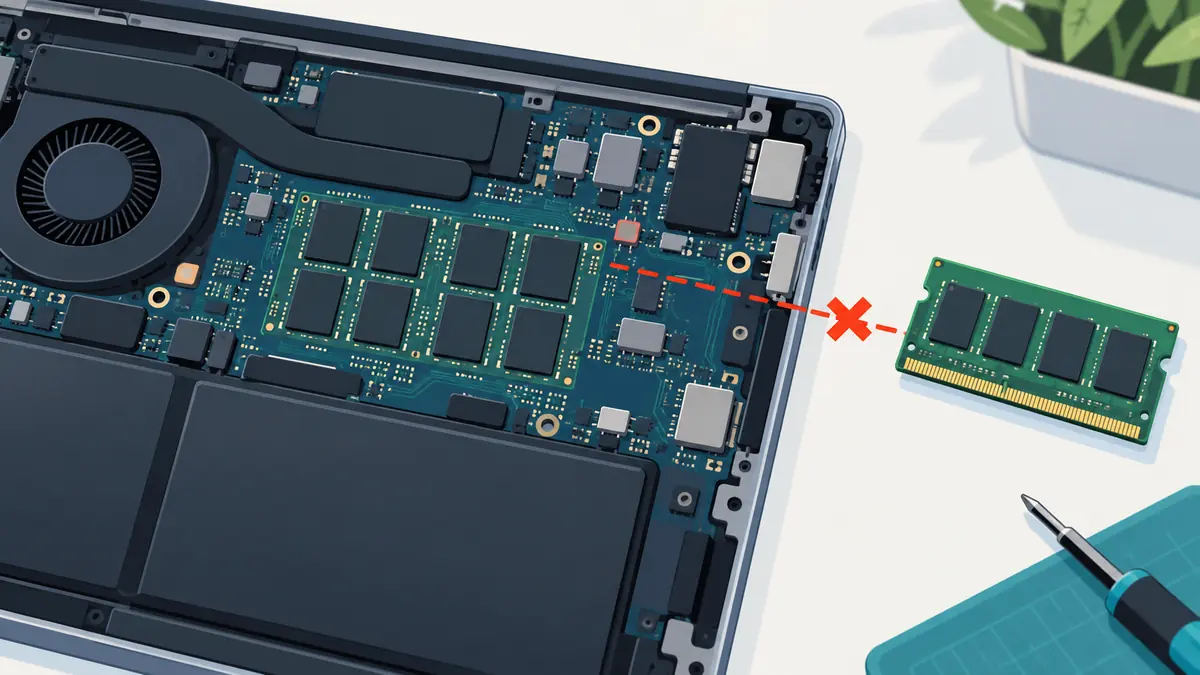
Check whether components are replaceable before ordering. Some laptops have soldered memory, proprietary storage, paired parts, or difficult adhesive construction. Use the service manual for the exact model number, not a video for a laptop that merely looks similar. Disconnect power and follow battery-safety directions if performing work yourself. When in doubt, pay for a qualified inspection.
Account for data and privacy
A failing laptop may still contain the owner’s most valuable asset: data. Confirm that the backup opens before surrendering the machine or attempting a repair. If the drive is encrypted, record the recovery key in a secure location. Ask a repairer whether the work requires login access and how replaced storage will be handled.
When replacing the laptop, do not erase the old one until important files, licenses, and account access have been verified on the new machine. Afterward, follow the operating-system maker’s reset instructions, remove the device from relevant accounts, and use an appropriate recycling or trade-in route. A dead screen does not mean the storage is empty.
A five-number decision
If the choice still feels unclear, put five numbers on one page: the repair total, likely additional repairs within a year, the full replacement total, conservative years gained from repair, and conservative years expected from replacement. Divide each total by its estimated useful years. Then note any non-financial constraint, such as a week without a work computer or software that only runs on the old system.
The result will not always select the lowest price. Reliability, repair time, environmental preferences, and the risk of another failure can reasonably change the decision. What it does prevent is spending $300 on a machine that cannot run required software, or spending $1,000 because a removable drive was full.
The practical answer
Repair a slow laptop when the cause is known, the important components remain sound, supported software is available, and the cost buys a credible period of dependable use. Replace it when the slowdown is only one symptom of wider decline, the hardware cannot meet the job, or support and parts have run out.
The best first purchase is often a diagnosis. It is cheaper than guessing, and it gives both options a fair comparison. A slow laptop is not automatically finished, but an inexpensive repair is not automatically good value.
Put the repair quote beside a complete replacement setup
A repair decision can change when a replacement needs extra memory, a dock, software or new accessories. Compare a repaired EliteBook 845 G11 with a MacBook Air M4 only after each option is ready to do the intended work. Include compatibility checks and time out of use, rather than comparing a repair invoice with a bare laptop price.
Write the reason you would choose repair and the condition that would reverse that choice. A single repair may be sensible when the rest of the device still meets the job. Several unresolved faults or an essential workflow mismatch require a broader comparison. Revisit the calculation if the technician discovers additional work; the first estimate should not become an obligation to continue spending.
| Keep in your decision record | What to write down |
|---|---|
| Repair total | Include diagnosis, required parts, labour and expected downtime. |
| Replacement total | Price a complete acceptable working setup. |
| Decision boundary | State what additional fault or cost changes the answer. |
Apply the guide to a real shortlist:
Updated October 10, 2026: added a practical application and decision record. This documentation-based guide uses estimates where stated; individual condition, repair costs and regional support vary.